| month | temperature |
|---|---|
| 0.0000000 | 0.0 |
| 0.3306940 | 3.2 |
| 0.6613879 | 6.1 |
| 0.9920819 | 8.4 |
| 1.3227759 | 9.7 |
| 1.6534698 | 10.0 |
| 1.9841638 | 9.2 |
| 2.3148577 | 7.4 |
| 2.6455517 | 4.8 |
| 2.9762457 | 1.6 |
| 3.3069396 | -1.6 |
| 3.6376336 | -4.8 |
| 3.9683276 | -7.4 |
| 4.2990215 | -9.2 |
| 4.6297155 | -10.0 |
| 4.9604095 | -9.7 |
| 5.2911034 | -8.4 |
| 5.6217974 | -6.1 |
| 5.9524913 | -3.2 |
| 6.2831853 | 0.0 |
12 When in doubt - plot it out
“The simple graph has brought more information to the data analyst’s mind than any other device.” — John Tukey
12.1 Pree-class Literature
Mandatory:
-
data viz guide of the Royal Statistical Society
- Chapters 1-4: Why we visualise data; Principles and elements of visualisations; Choosing a visualisation type; Styling for accessibility
- astrazeneca blog post
- data.europa.eu blog post on Honest Charts
- Section 17.3
Extra - not mandatory:
13 Slides
NoteTeacher note
The slides contain speaking notes that you can view by pressing ‘S’ on the keyboard.
13.1 Case session 4: “Let’s first see what the data are telling us”
A research group at AalboR University is reviewing data collected from patients undergoing exercise-based cardiac assessment. The dataset contains information such as age, maximum heart rate reached during exercise, and whether the patient experienced exercise-induced angina during the assessment.
The research team is initially interested in a fairly simple question:
How does maximum heart rate during exercise vary with age?
Before drawing any conclusions from the data, however, the team wants to understand what the relationship actually looks like in their patient population.
During a research meeting, a colleague points out:
“We know that age and exercise heart rate are related, but I don’t want us to assume that the same pattern necessarily applies to everyone in the dataset. Let’s first see what the data are telling us.”
The Professor asks you to start by exploring the distribution of maximum heart rate and comparing patients with and without exercise-induced angina. Finally, examine how maximum heart rate changes across age.
13.2 Reading Task: Why Visualize Data?
In medicine, pharmaceuticals, and healthcare, data is everywhere — patient records, clinical trials, drug efficacy studies, hospital operations, and more. But raw numbers alone don’t tell the full story. Data visualization turns complex information into clear, actionable insights which effectively aids you (and your future colleagues) make faster, smarter decisions.
Which of these are easiest to draw information from:
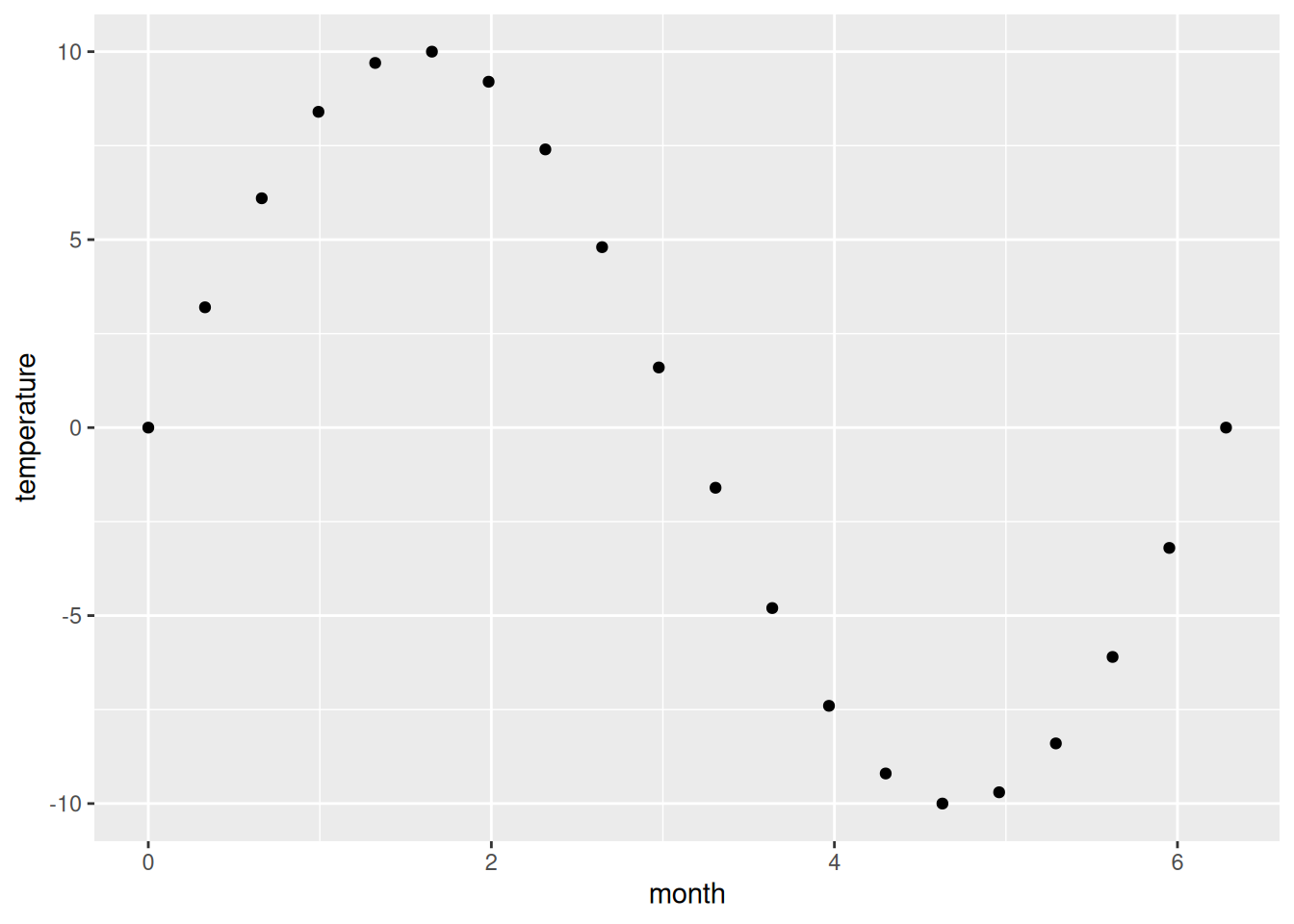
Good visualizations help you:
- Spot patterns (e.g., a sudden spike in adverse drug reactions)
- Communicate findings (e.g., convincing a hospital board to adopt a new protocol)
- Avoid mistakes (e.g., misreading a critical lab value in a dense table)
The Royal Statistical Society propose five key reasons to visualize data
- Grab Attention
A plot with a red alert trendline for rising infections will get more attention than a 10-page report.
- Improve access to information
Doctors, nurses, and politicians don’t have time to parse dense tables.
- Increase precision
A plot can contextualize data better than any table could using the same print space.
- Bolster credibility
Visualizations lets stakeholders “see” the evidence for themselves. Regulators and investors demand transparency — visuals provide it.
- Summarise content
A single infographic can replace several pages of text.
Data visualization isn’t just about “making things look nice”. It’s a critical skill for being able to evaluate any scientific claim. Through this class, we’ll dive into how to choose the right visualization for a given data structure and how to avoid common mistakes.
13.3 Discussion activity: Your experience with data visualization:
- Where do you see data visualization “in the wild”?
- What makes you trust a figure/graph? What could make you distrust it?
- What’s one type of data you’ve seen in your studies/clinical rotations that was able to provide a lot of (valuable) information using a visualization?
13.4 Exercise: Conceptualization of a plot
Do older patients have higher or lower max heart rate than younger patients? You probably already have an answer, but try to make your answer precise.
What does the relationship between age and max heart rate look like? Is it positive? Negative? Linear? Nonlinear? Does the relationship vary by the presence of exercise-induced angina in the patient?
Before we create visualizations that we can use to answer these questions, try drawing your expectations using pen and paper.
You can do it in many ways — this is also part of the exercises!
alone
- make a plot stating your expectations about the relationship between age and max haeart rate.
- now, make a new plot adding information about exercise-induced angina-
in pairs
- can the other person interpret your plot?
- do your plots differ — how?
- which is more clear and why — which features makes it better/worse?
13.5 Setting up for success:
Recall from Section 11.6 that we want a project to contain our files. In this session, we’ll make a new project called: plotting-data.
Recall we can use RStudio’s “New Project” menu item under “File -> New Project…”. A new pop-up window shows up. Click “New directory” and select “New Project”. Type out plotting-data as the directory name and save it to the Desktop/ (or where you want to store your project).
Finally, while you’re in the project (see top right plotting-data), run:
medisr::medisr_init_project13.5.1 Terminology
To make the communication easier, let’s define some terms (we use the definitions from (1))
A variable is a quantity, quality, or property that you can measure.
A value is the state of a variable when you measure it. The value of a variable may change from measurement to measurement.
An observation is a set of measurements made under similar conditions (you usually make all of the measurements in an observation at the same time and on the same object). An observation will contain several values, each associated with a different variable. We’ll sometimes refer to an observation as a data point.
Tabular data is a set of values, each associated with a variable and an observation. Tabular data is tidy if each value is placed in its own “cell”, each variable in its own column, and each observation in its own row.
In this context, a variable refers to an attribute of all the patients, and an observation refers to all the attributes of a single patient.
Load the data and type the name of the data frame in the console and R will print a preview of its contents.
docs/session4.R
hd_data <- medisr::hd_dataRecall from Chapter 11 that you can use the console Figure 7.1 to interactively explore the data either by
- pasting the dataset variable
hd_dataand pressingEnterdirectly in the console, or - writing a line within a script
.Rfile, resting the cursor on that line, and typing mac=Command-Entermac=Command-Enter — this will directly send the code to the console.
docs/session4.R
hd_data # your cursor must be here!# A tibble: 303 × 15
...1 Age Sex ChestPain RestBP Chol Fbs RestECG MaxHR ExAng
<int> <int> <int> <chr> <int> <int> <int> <int> <int> <int>
1 1 63 1 typical 145 233 1 2 150 0
2 2 67 1 asymptomatic 160 286 0 2 108 1
3 3 67 1 asymptomatic 120 229 0 2 129 1
4 4 37 1 nonanginal 130 250 0 0 187 0
5 5 41 0 nontypical 130 204 0 2 172 0
6 6 56 1 nontypical 120 236 0 0 178 0
7 7 62 0 asymptomatic 140 268 0 2 160 0
8 8 57 0 asymptomatic 120 354 0 0 163 1
9 9 63 1 asymptomatic 130 254 0 2 147 0
10 10 53 1 asymptomatic 140 203 1 2 155 1
# ℹ 293 more rows
# ℹ 5 more variables: Oldpeak <dbl>, Slope <int>, Ca <int>, Thal <chr>,
# HD <chr>Among the variables in hd_data are:
ExAng: whether a patient experienced exercises-induced angina.Age: how old a patient was at the time of the measurement (in years).MaxHR: the max heart rate value we measured.
13.6 Ultimate goal
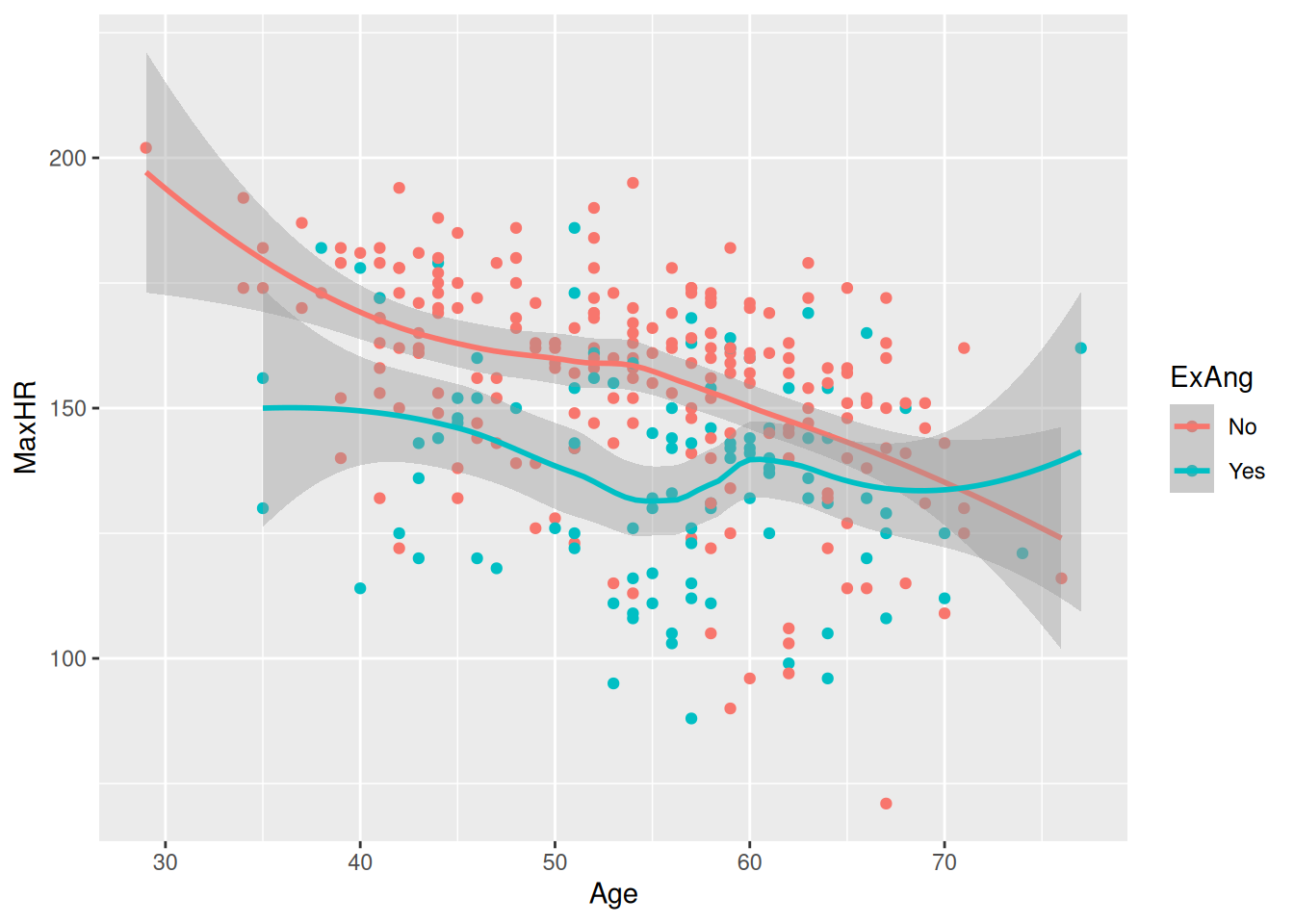
Our ultimate goal in this session is to recreate the following visualization displaying the relationship between max heart rate vs. age of patients with and without exercise-induced angesia.
13.7 Reading task: Hallo {ggplot2}
R has several systems for making graphs, but ggplot2 is one of the most elegant and most versatile. ggplot2 implements the grammar of graphics, a coherent system for describing and building graphs. With ggplot2, you can do more and faster by learning one system and applying it in many places.
ggplot2 is an implementation of the “Grammar of Graphics” (“gg”). This is a powerful approach to creating plots because it provides a set of structured rules (a “grammar”) that allow you to expressively describe components (or “layers”) of a graph. Since you are able to describe the components, it is easier to then implement those “descriptions” in creating a graph. According to (2), there are at least four aspects to using ggplot2 that relate to its “grammar”:
- Aesthetics,
aes(): How data are mapped to the plot, including what data are put on the x and y axes, and/or whether to use a colour for a variable. - Geometries,
geom_functions: Visual representation of the data, as a layer. This tells ggplot2 how the aesthetics should be visualized, including whether they should be shown as points, lines, boxes, bins, or bars. - Scales,
scale_functions: Controls the visual properties of thegeom_layers. Can be used to modify the appearance of the axes, to change the colour of dots from, e.g., red to blue, or to use a different colour palette entirely. - Themes,
theme_functions ortheme(): Directly controls all other aspects of the plot, such as the size, font, and angle of axis text, and the thickness or colour of the axis lines.
There is a massive amount of features in ggplot2. Thankfully, ggplot2 was specifically designed to make it easy to find and use its functions and settings using tab auto-completion. To demonstrate this feature, try typing out geom_ and you’ll start seeing a menu pop-up with a list of functions that start with geom_. You can then use the arrow keys to move up and down the list and then hit either Enter or Tab to select the function. You can use this with scale_ or the options inside theme(), for instance try typing out theme(axis. to see all options for the axis a list of theme settings related to the axis will pop up.
13.8 Code-along: Plot one continuous variable
Since low max heart rate has been proposed as a risk factor for heart disease, let’s check out the distribution of max heart rate among the patients. There are two good geoms for examining distributions for continuous variables: geom_density() and geom_histogram(). Before we can make a plot, we need to tell ggplot2 what data we are using and which variable to put in which axis or dimension. For that we use the ggplot() function with the aes() function used inside of it.
docs/session4.R
hd_data |>
  ggplot(aes(x = MaxHR))
Run this code by using mac=Command-Entermac=Command-Enter. You’ll get a blank plot. That’s because we haven’t told ggplot2 what kind of plot we want to make, which needs a geom_ function.
We’ll start with creating a histogram, which is a useful way of visualizing the distribution of a continuous variable. We do that with geom_histogram(), but you can easily replace the code with geom_density() to make a density plot. Note that it is good practice to always create a new line after the +.
docs/session4.R
ggplot(hd_data, aes(x = MaxHR)) +
  geom_histogram()
`stat_bin()` using `bins = 30`. Pick better value `binwidth`.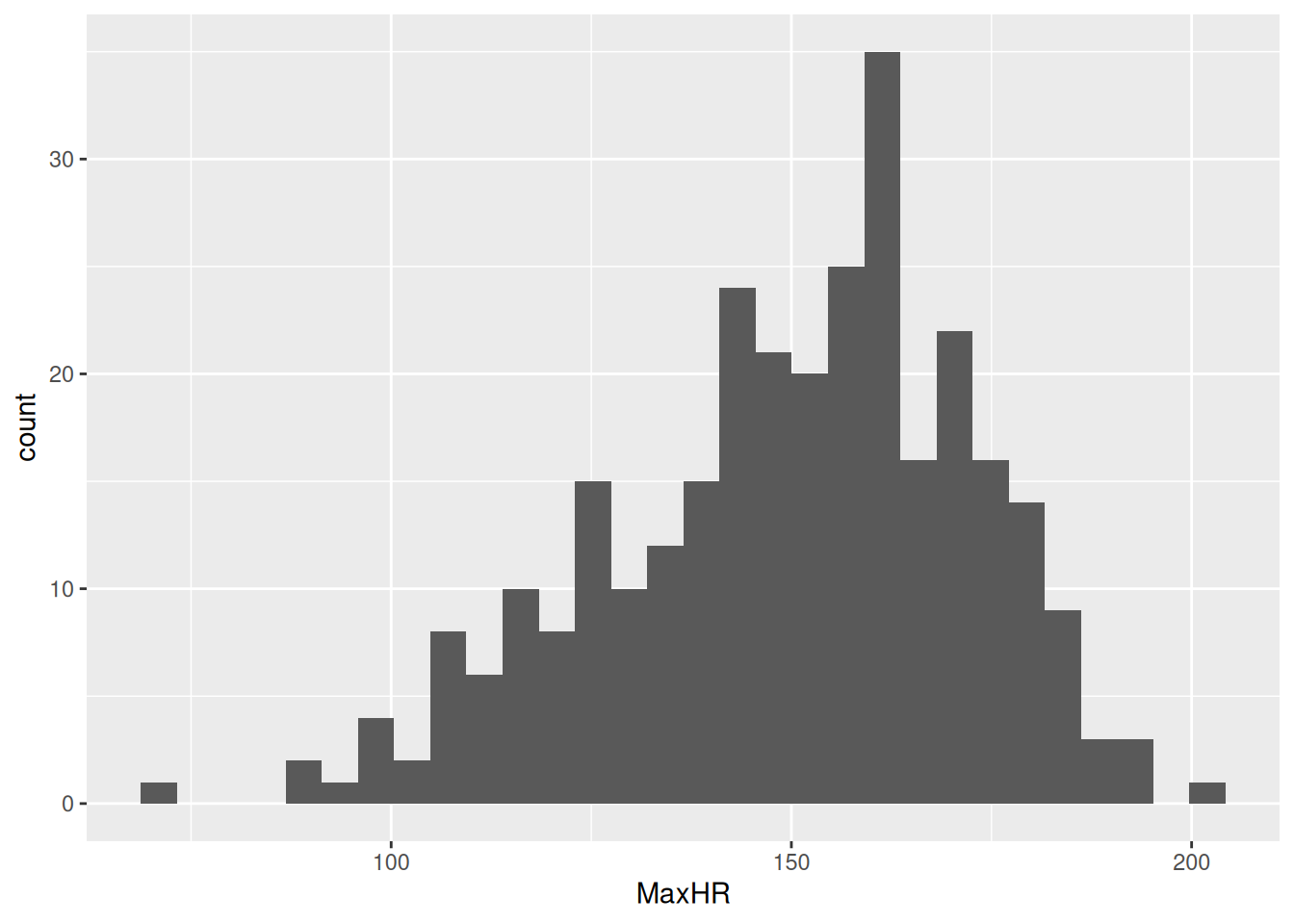
Tip
Our plot shows that MaxHR is not normally distributed — it has a wider tail to the left. This implies that the data might be composed of sub-groups. We’ll explore this idea further.
13.9 🧑💻 Exercise: Rotate the axis of a plot
For several reasons, switching the x and y axis can be very helpful for some data visualization purposes. But how do we define x and y in the previous plot - we only set the x-variable!?
Luckily, ggplot2 has a need function for this purpose, named coord_flip(). Try flipping the coordinates of the histogram of the max heart rate.
hd_data |>
    ggplot((___ = ___)) +
    ____histogram() +
coord_flip()Click for the solution
# The solution:
hd_data |>
  ggplot(aes(x = MaxHR)) +
  geom_histogram()
coord_flip()
13.10 Code-along: The box plot
We can see many things from the histogram:
- The distribution looks left skewed
- The mean is somewhere around 150 BPM
- Most data is between 100-200 BPM
- From the looks of it, there might be an observation with an unlikely value (max heart rate of 45 BPM? 👀).
An important question is — can we do a better job helping the reader identify these information using data visualization?
Yes - yes, we can.
Take a close look at the humble boxplot, also known as the box-and-whisker plot:
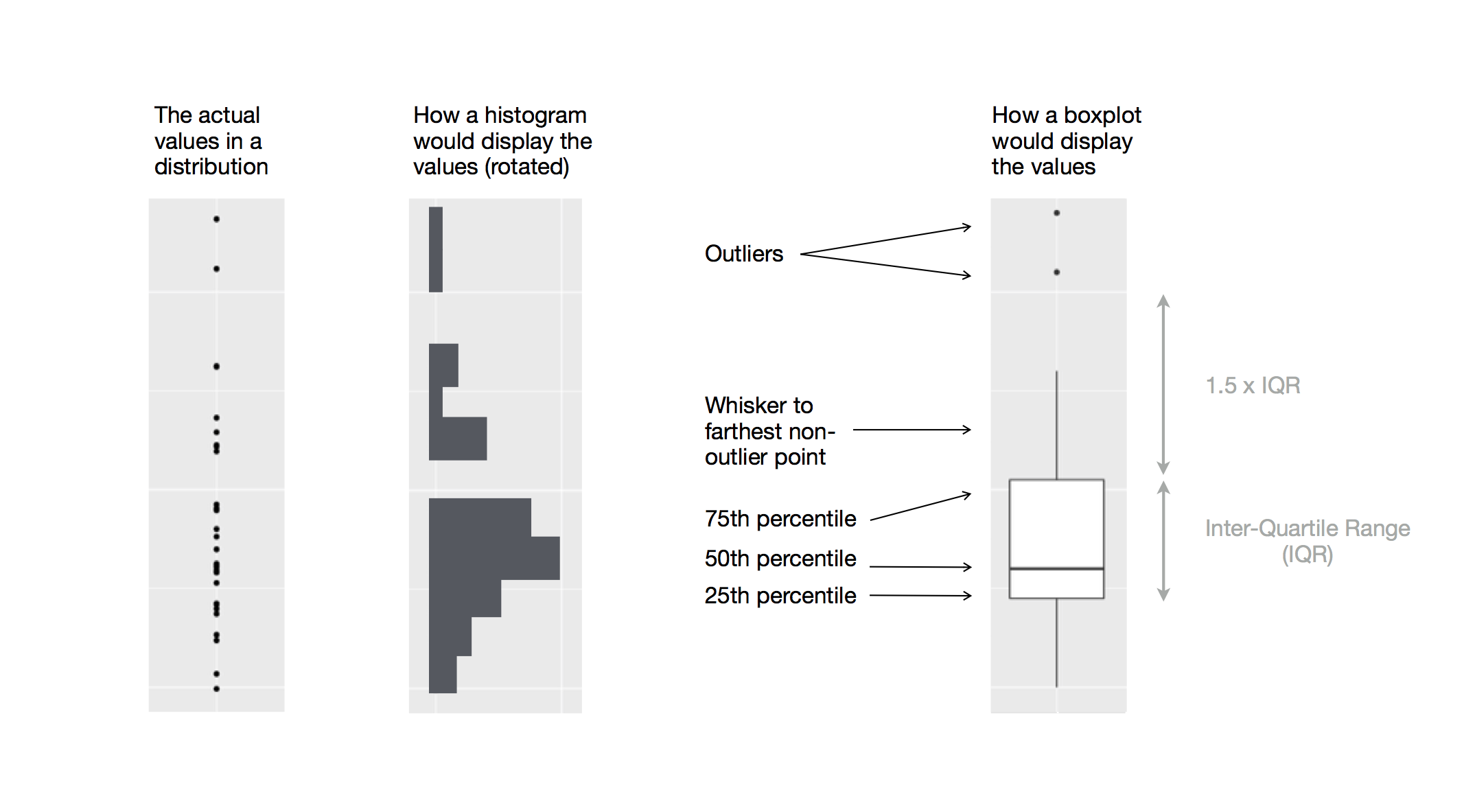
As you can see, the boxplot is designed to highlight certain features of the histogram. Let’s try swapping out geom_histogram with geom_boxplot:
docs/session4.R
hd_data |>
  ggplot(aes(x = MaxHR)) +
  geom_boxplot() +
  coord_flip()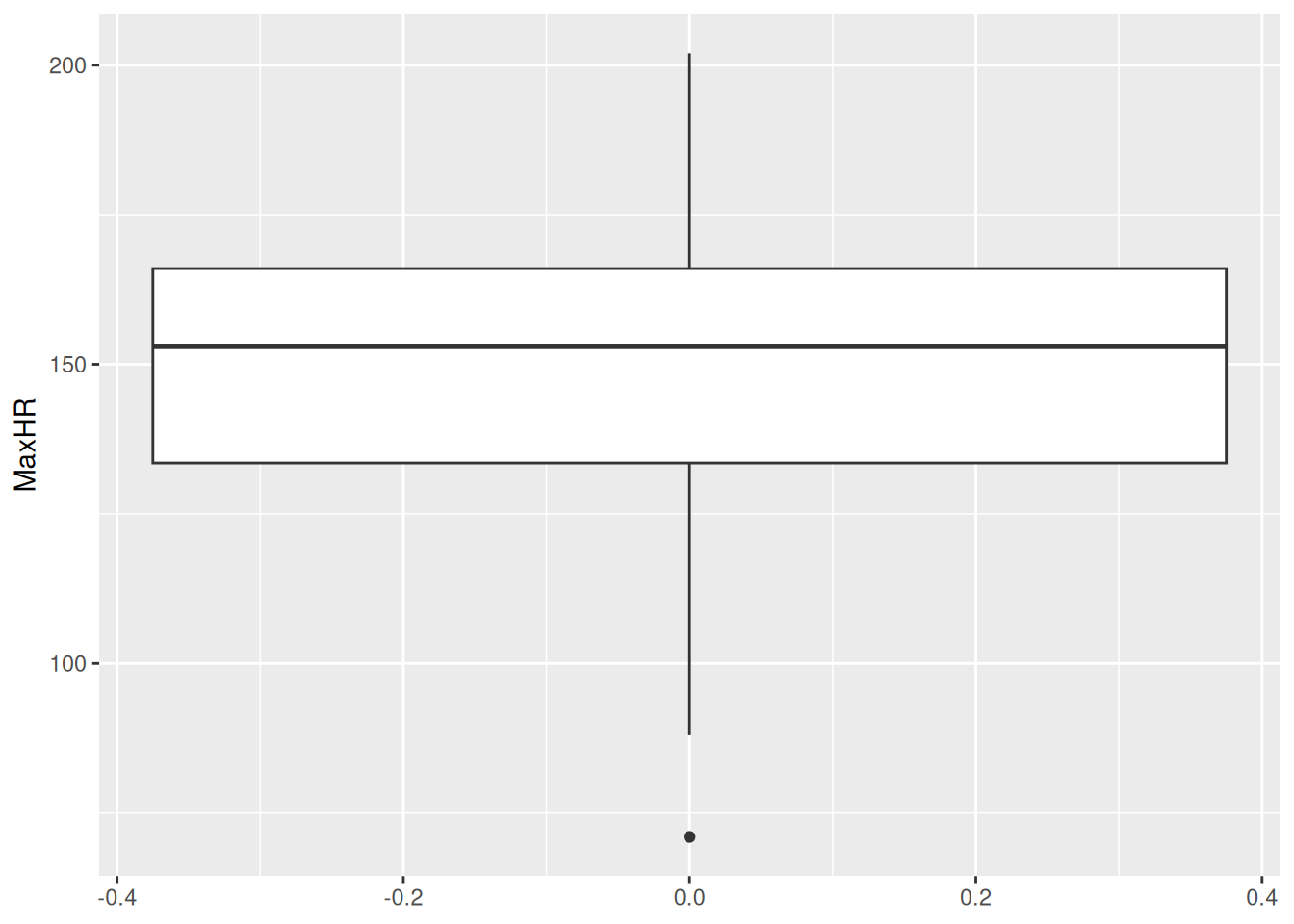
This figure excels at highlighting the median, quartiles, and extreme data points defined here as above 1.5 times the distance from the 1st and 3rd quantiles — termed the inter-quartile range (IQR). However, it leaves out the information of sample size (how much data?) and data quality (e.g., spikes at values due to discretization or measurement error).
It is a very popular plot for comparing continuous variables between two groups. This is useful to us as well, so let’s try plotting this stratified for patients with(out) exercise-induced angesia:
docs/session4.R
hd_data |>
  ggplot(aes(x = ExAng, y = MaxHR)) +
  geom_boxplot()
Warning: Orientation is not uniquely specified when both the x and y aesthetics
are continuous. Picking default orientation 'x'.Warning: Continuous x aesthetic
ℹ did you forget `aes(group = ...)`?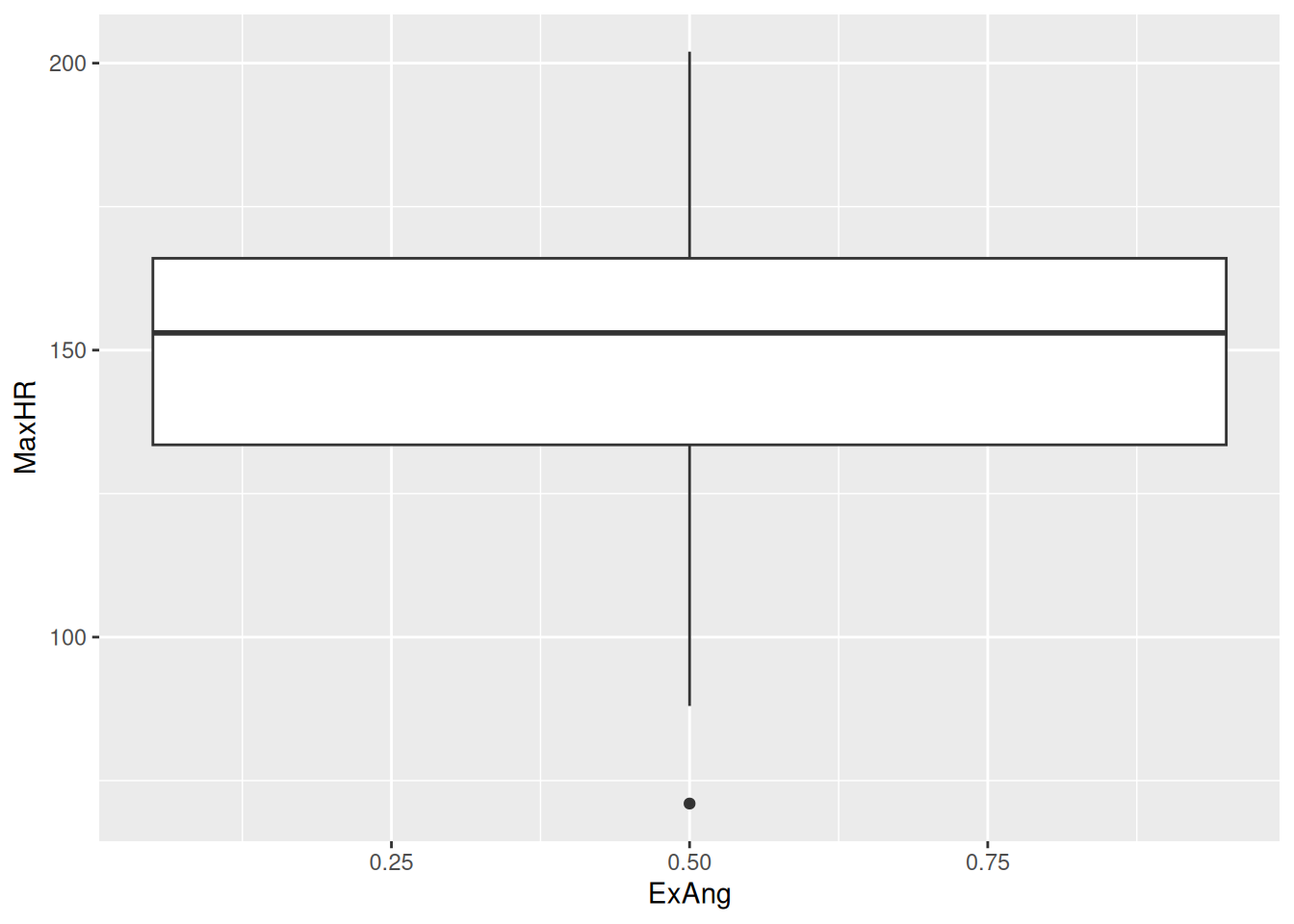
Wait a minute… We still only have one box plot and the value is at 0.5 - but when we inspect hd_data$ExAng or View(hd_data$), all values are 0 or 1?!
Now, pay attention to the warnings we got:
- “Orientation is not uniquely specified when both the x and y aesthetics are continuous”
Wait a minute! ExAng is not supposed to be continuous! The type it numeric (or dbl for double precision floating-point data type). But we actually consider it a factor indicating either yes/no. Let’s change the type as a factor using the factor function to correct this mistake.
docs/session4.R
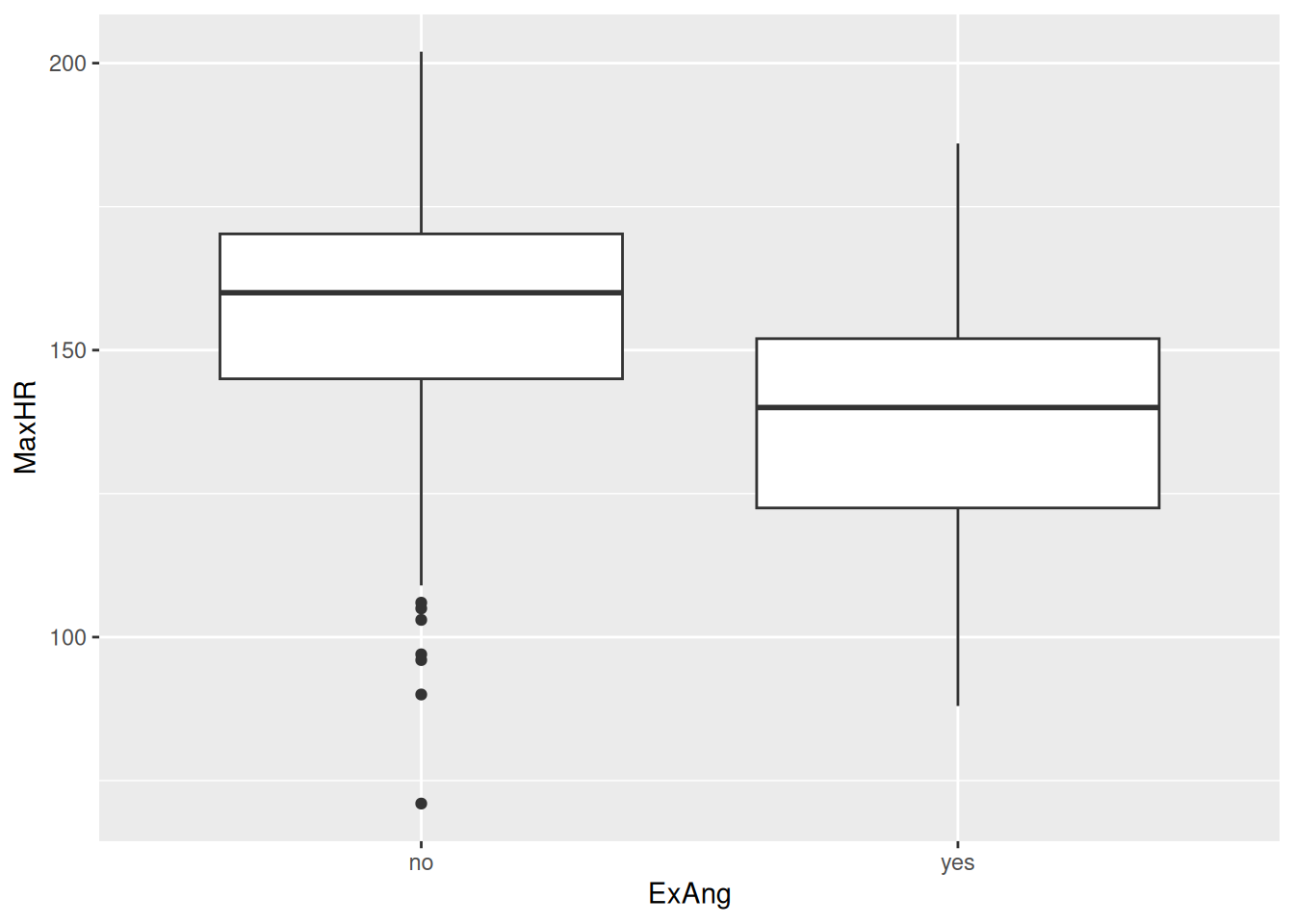
Aha! It works. We now see the no/yes in the x-axis.
13.11 Code-along: The bar plot
A very common plot type is the bar plot, also called a column plot.
As you probably know by now, we can simply swap the geom_ and try it out:
hd_data |>
  ggplot(aes(ExAng, MaxHR)) +
  geom_col()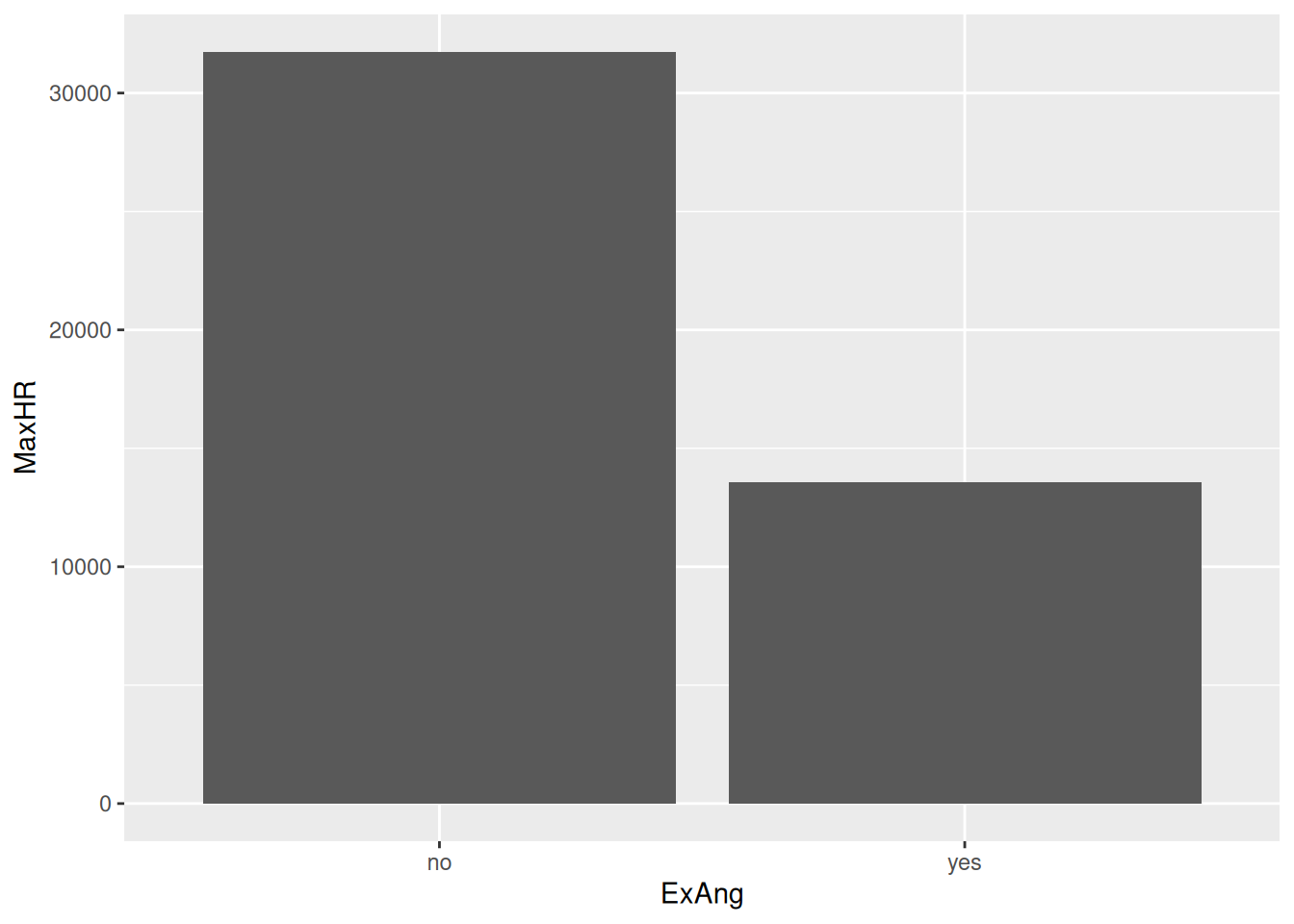
Hmm… I’ve never seen a human being with a max heart rate of +30.000 - this must be a mistake!
It turns out that the geom_col takes the sum of all observations. We wanted the mean!
But here is an important point — we don’t have the mean in our dataset! We would have to calculate it first. There are two ways of doing this:
- Calculate the mean, make a new dataset with the mean values, and plot this dataset.
- Quickly calculate the mean using dplyr or
{ggplot2::stat_summary()}.
You will learn more about dplyr in a future session. This is actually the recommended approach. But for a quick demonstration, let’s try using the stat_summary function:
docs/session4.R
hd_data |>
  ggplot(aes(ExAng, MaxHR)) +
  stat_summary(geom = "col", fun = mean)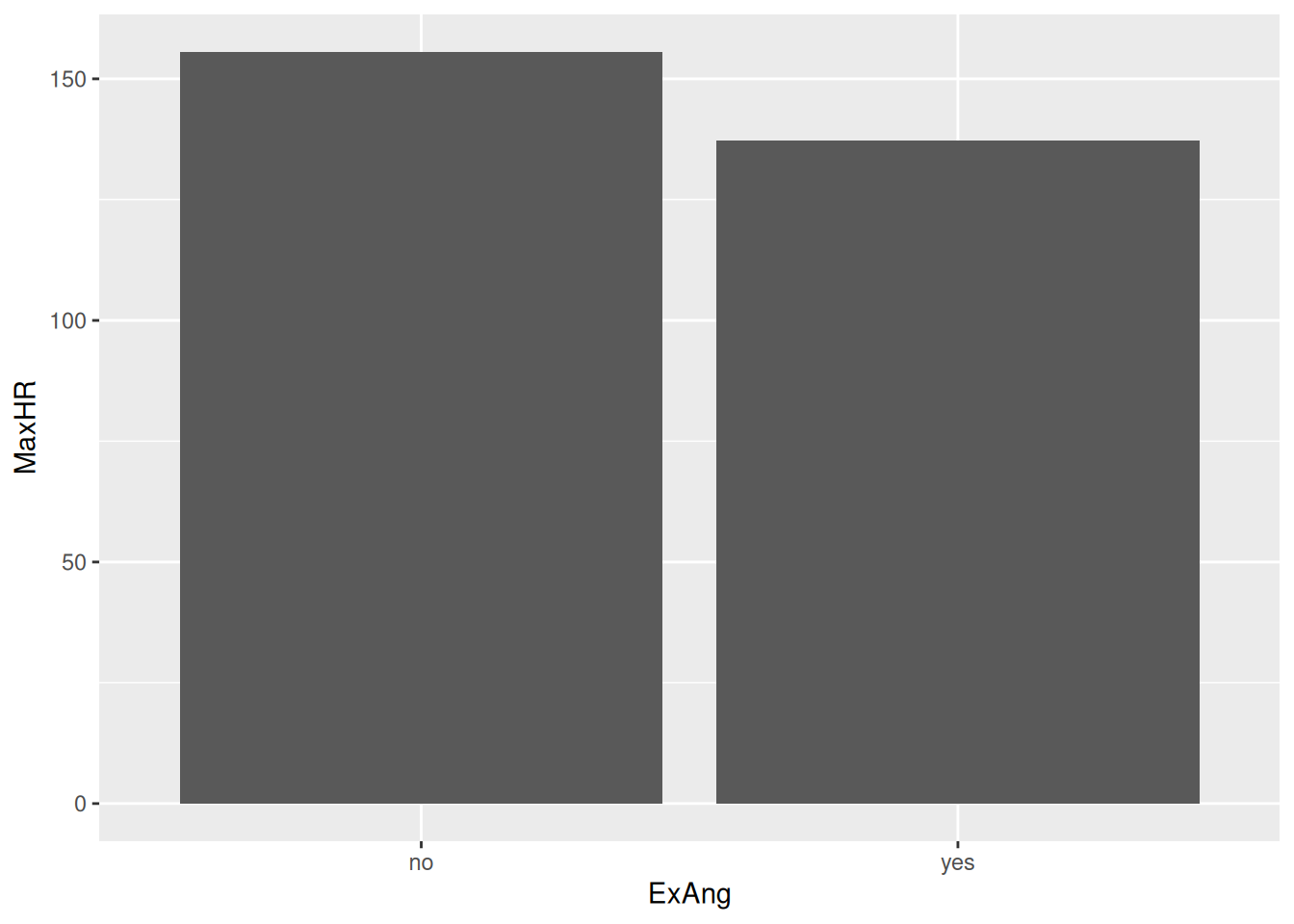
This looks much better!
13.12 📖 Reading task: Be careful with certain plots
Time: ~5 minutes
Before continuing with plotting, let’s take a minute to talk about a commonly used barplots with mean and error bars. In all cases, barplots should only be used for discrete (categorical) data where you want to show counts or proportions. As a general rule, they should not be used for continuous data. This is because the commonly used “bar plot of means with error bars” actually hides the underlying distribution of the data. To have a better explanation of this, you can read the article on why to avoid barplots after the workshop. The image below was taken from that paper, and briefly demonstrates why this plot type is not useful.
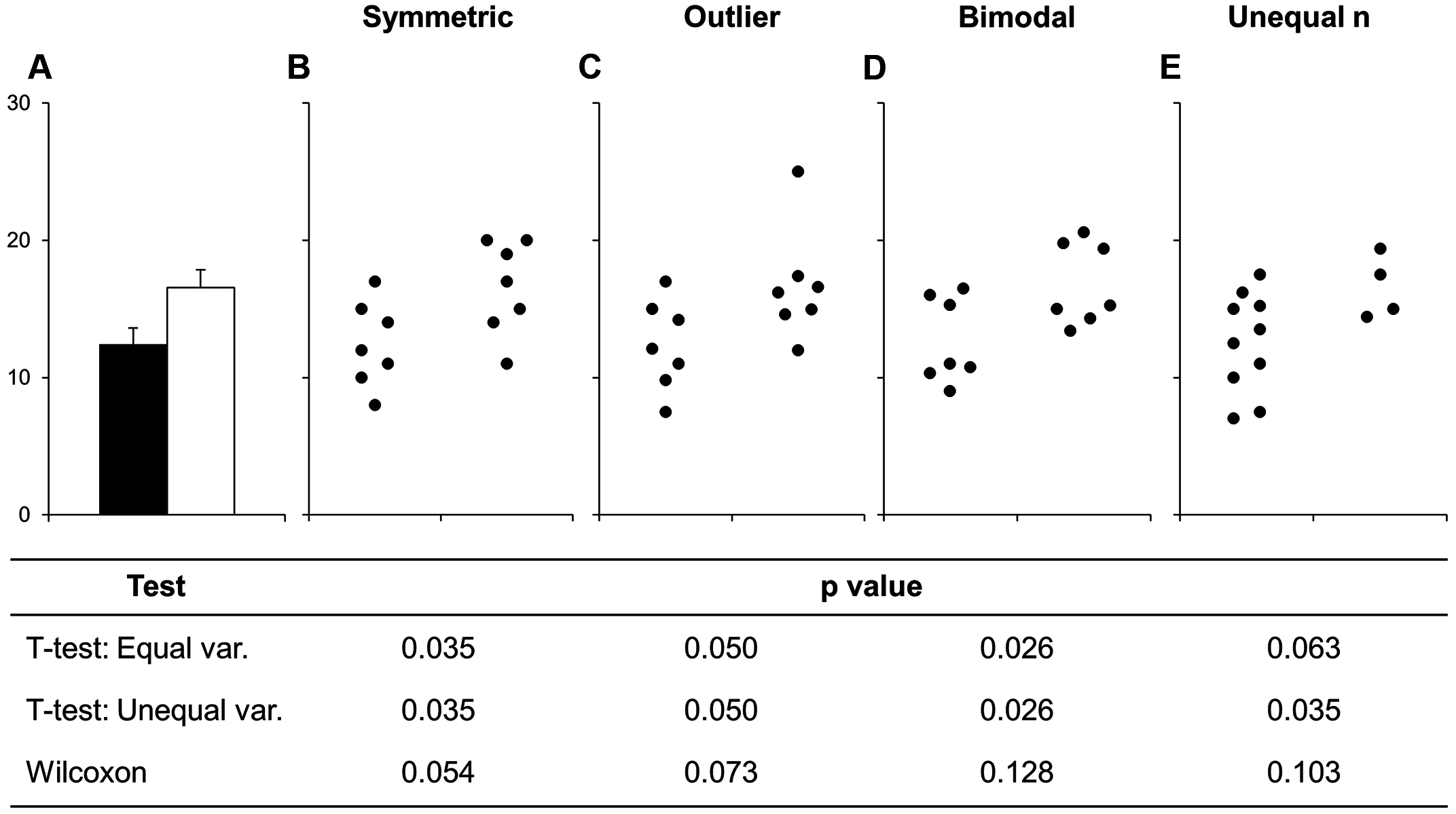
If you do want to create a barplot, you’ll quickly find out that it is actually quite hard to do in ggplot2. The reason it is difficult to create in ggplot2 is by design: it’s a bad plot to use, so use something else.
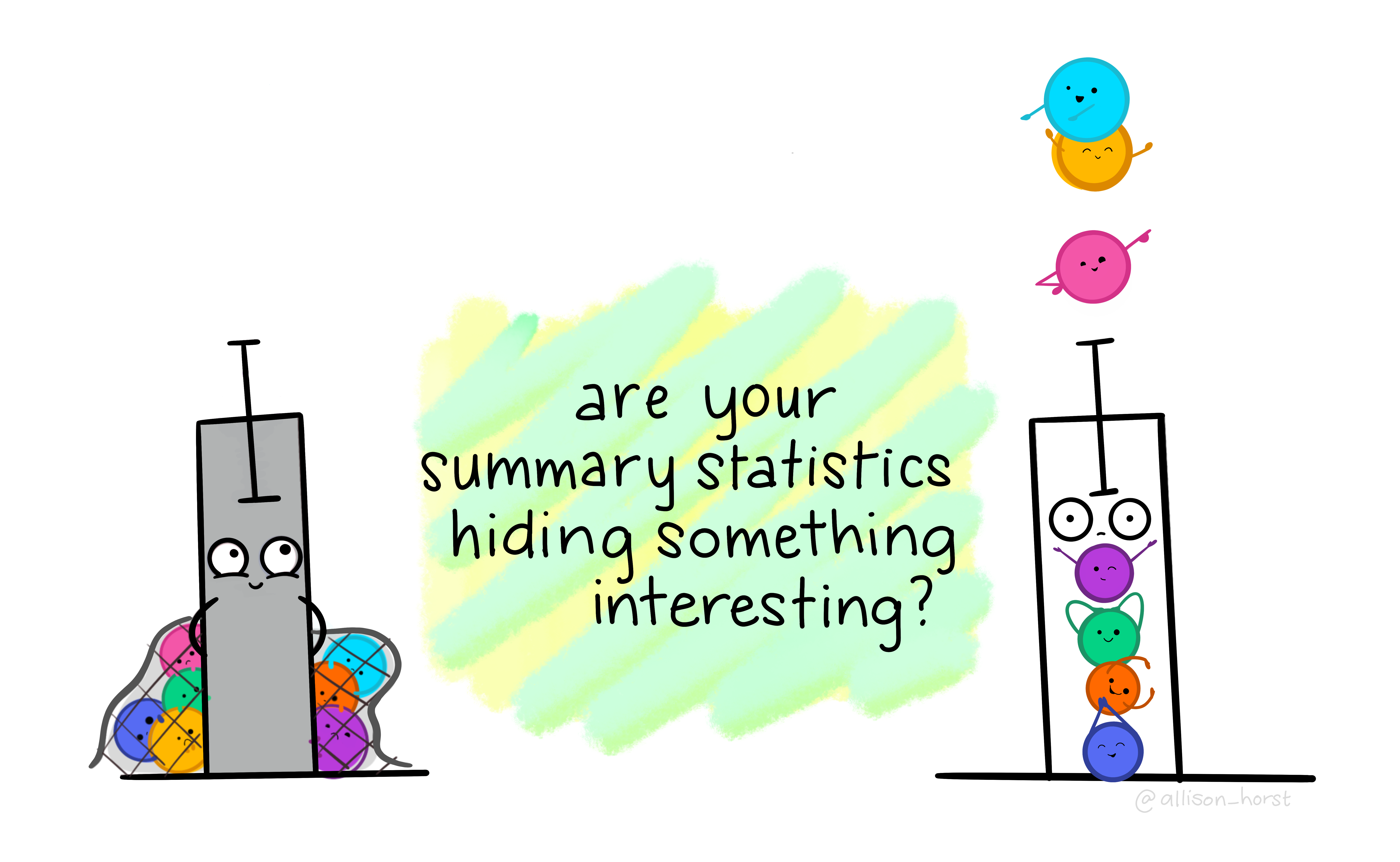
It is also possible to compute error bars using ggplot2.
docs/session4.R
hd_data |>
  ggplot(aes(ExAng, MaxHR)) +
  stat_summary(geom = "col", fun = mean) +
  stat_summary(
    fun.data = "mean_cl_boot", # The 95% confidence interval of the mean     # "mean_cl_normal" # mean_sdl
    geom = "errorbar",
    width = 0.15
  )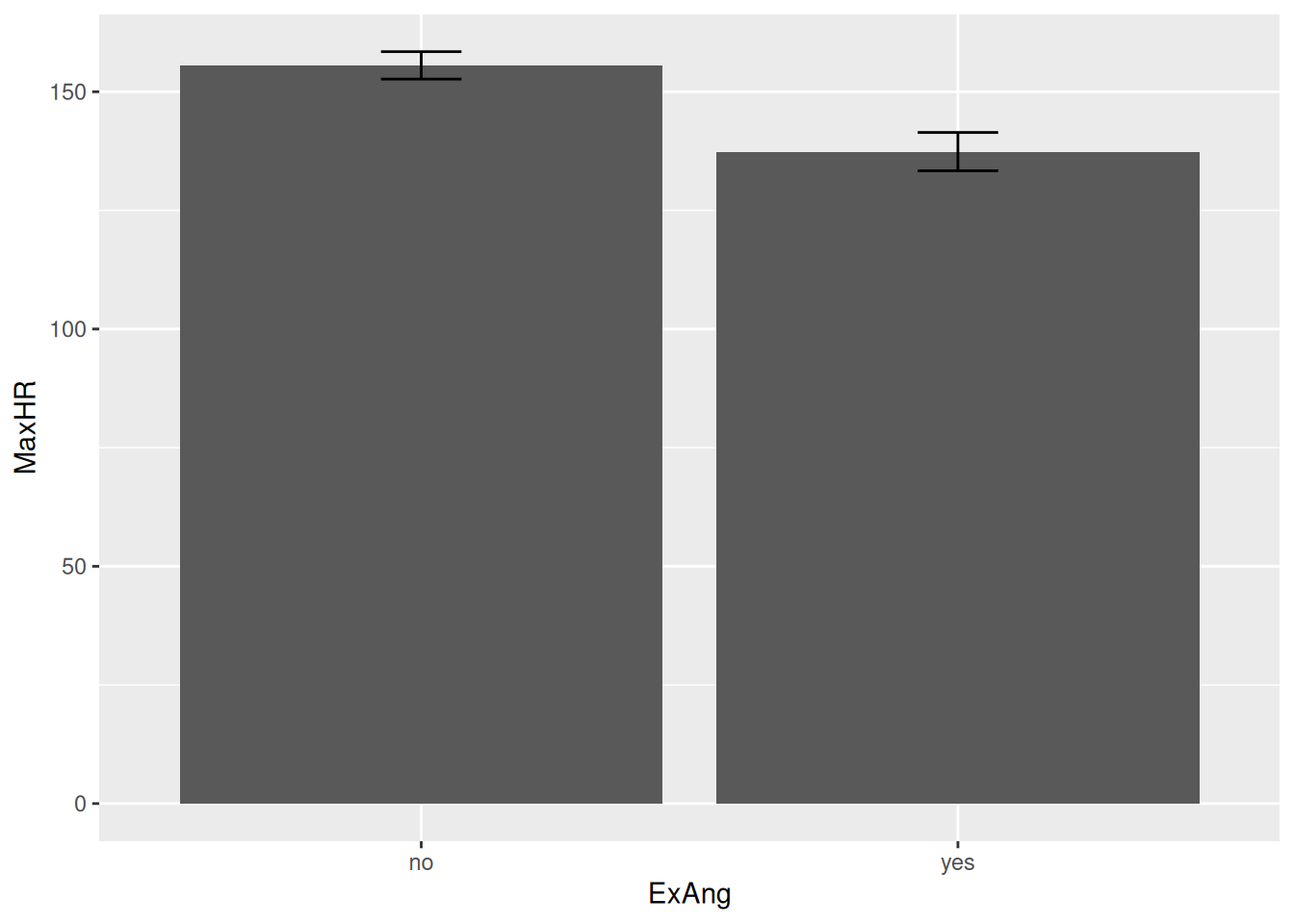
However, it’s much safer and better practice computing the standard deviation, standard error, or confidence interval using dplyr first. You’ll learn how to do this in a later class.
At least, consider adding the points too. It’s as simple as adding another geom_-layer.
docs/session4.R
hd_data |>
  ggplot(aes(ExAng, MaxHR)) +
  stat_summary(geom = "col", fun = mean) +
  geom_jitter()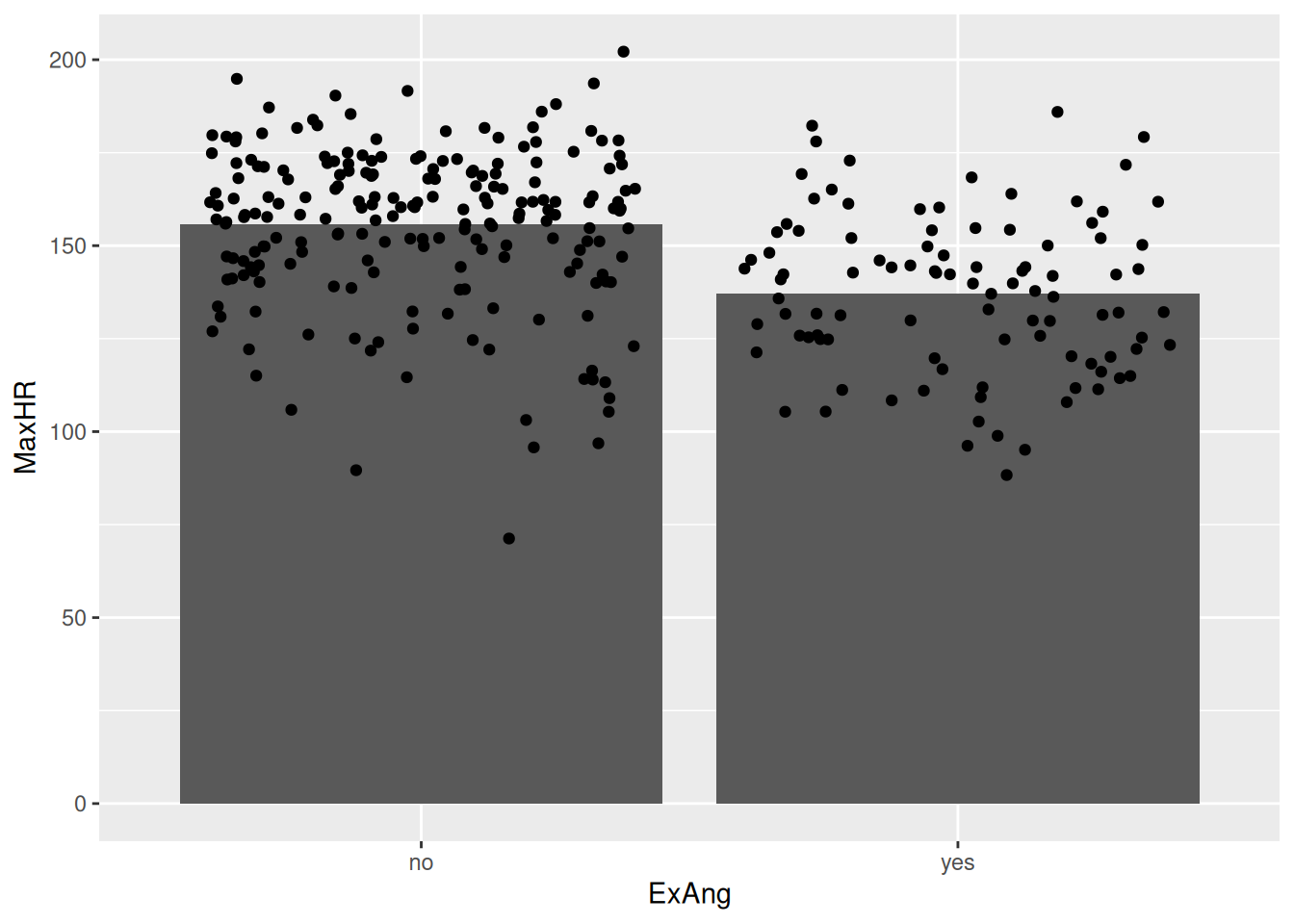
13.13 Code-along: The scatter plot
Now that we have learned how to do a simple bar plot — and why not to use it — we proceed with the scatter plot. It is as easy as geom_point():
docs/session4.R
hd_data |>
  ggplot(aes(Age, MaxHR)) +
  geom_point()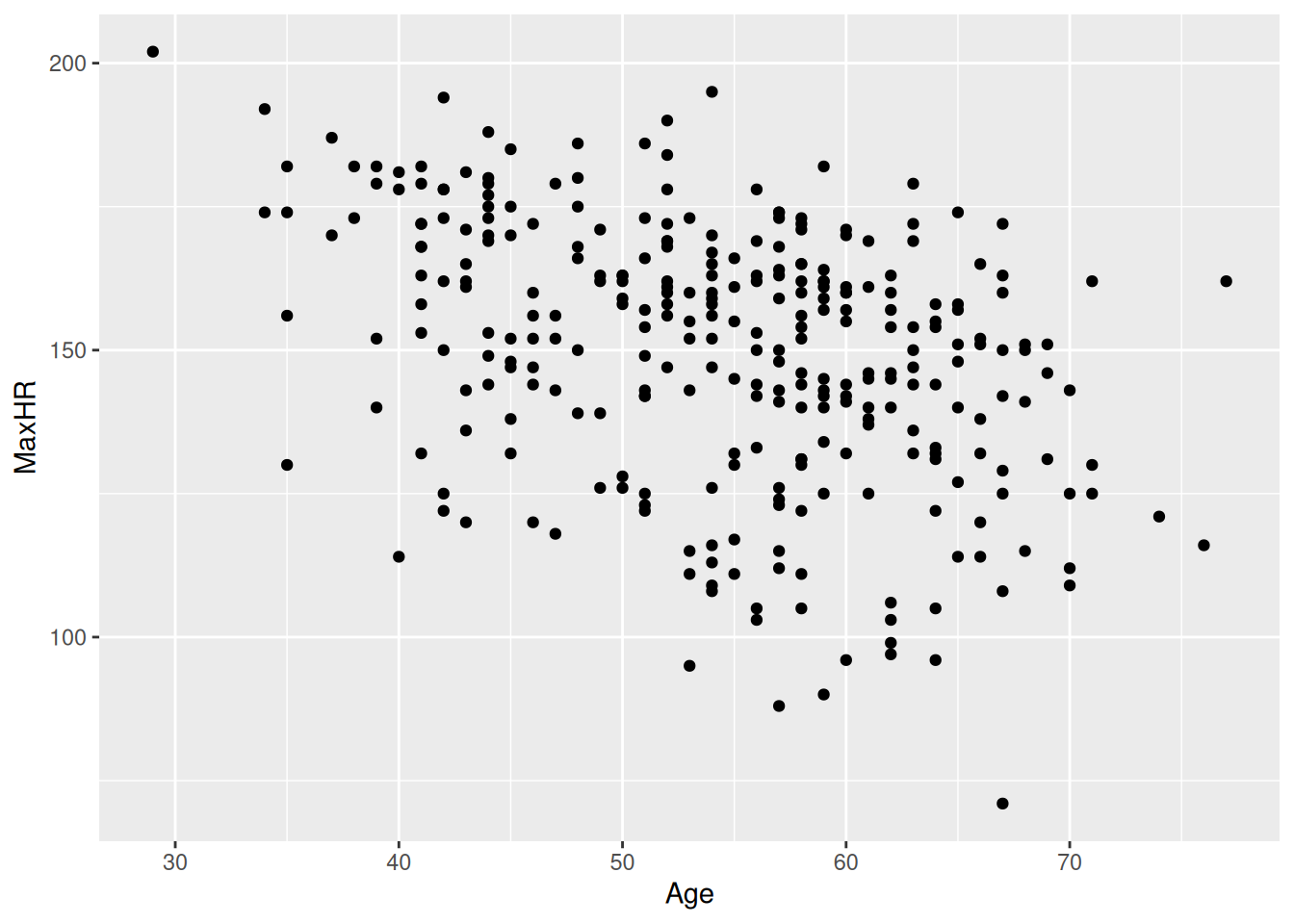
Great! Now we have a great looking scatter of the max hear rate as a function of age. But how do we now visually separate the patient groups based on exercises-induced angesia? A common solution would be to color the points belonging to each group a different color! Let’s try this:
docs/session4.R
hd_data |>
  ggplot(aes(Age, MaxHR, color = ExAng)) +
  geom_point()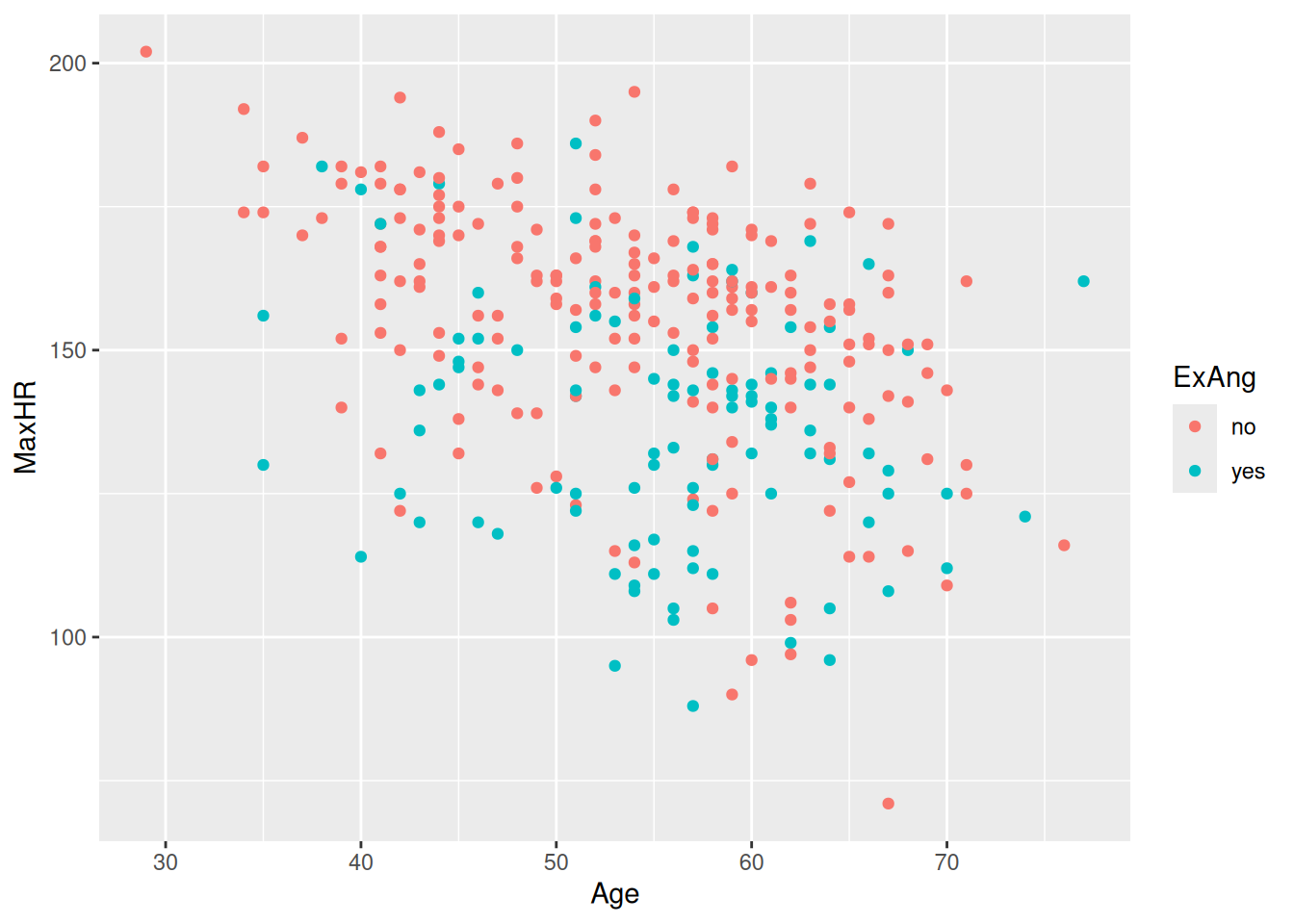
That did it! Now, recall we were interested in whether the two groups differ in their trend.
We want to ask:
Do they follow similar trends?
We can try to imagine a line passing through the points but this is somewhat a subjective guessing tasks. Luckily, ggplot2 has another trick up it’s sleeve:
docs/session4.R
hd_data |>
  ggplot(aes(Age, MaxHR, color = ExAng)) +
  geom_point() +
  geom_smooth()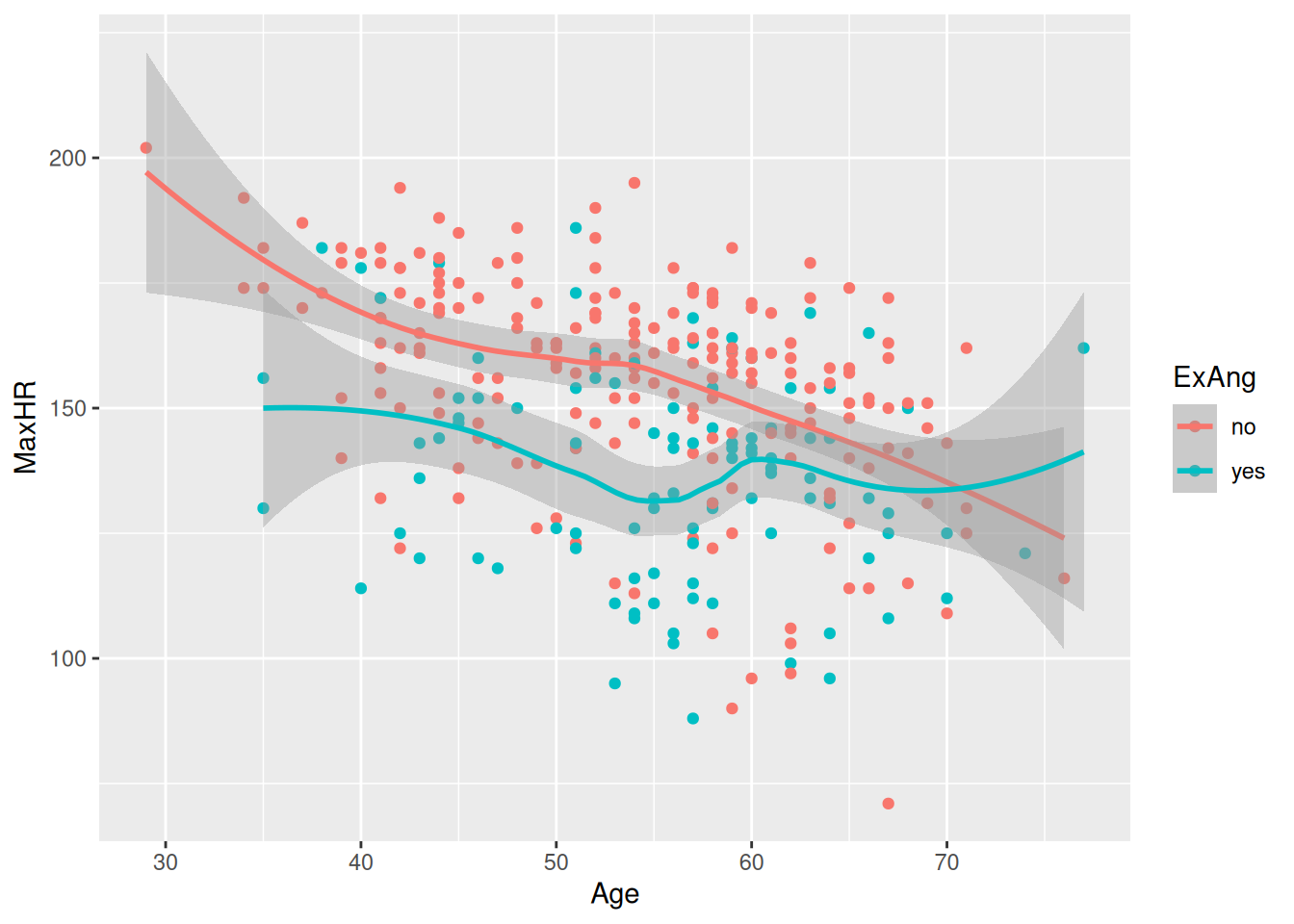
The geom_smooth adds a line for each group! That is exactly what we wanted! Now, we can report back to the clinicians what we found.
13.14 Exercises: Adding axis labels
A plot must have clear axes. Otherwise, it will be impossible for others to read.
Of course, ggplot2 has a function called labs() that we can use. Try adding axis labels to the plot here:
hd_data |>
    ggplot(___(___ = ___)) +
    geom_point() +
___(x = "___", y = "___")Click for the solution
# The solution:
hd_data |>
    ggplot(aes(Age, MaxHR, color = ExAng)) +
    geom_point() +
    labs(x = "Age (years)", y = "max heart rate (BPM)")
13.15 Saving your plots
Once you’ve made a plot, you might want to get it out of R by saving it as an image that you can use elsewhere. That’s the job of ggsave(), which will save the plot most recently created to disk:
hd_data |>
  ggplot(aes(Age, MaxHR, color = ExAng)) +
  geom_point() +
  geom_smooth()

ggsave(filename = "subgroup-association.png")
This will save your plot to your working directory (which should be the root of your project folder, if you’re in your R-project (see session 1).
13.16 Reading task: Statistics fail at what data visualization makes obvious
Take a close look at the following four datasets. You are initially provided with the summary statistics.
| dataset | x_mean | x_sd | y_mean | y_sd | r |
|---|---|---|---|---|---|
| 1 | 9 | 3.3 | 7.5 | 2 | 0.82 |
| 2 | 9 | 3.3 | 7.5 | 2 | 0.82 |
| 3 | 9 | 3.3 | 7.5 | 2 | 0.82 |
| 4 | 9 | 3.3 | 7.5 | 2 | 0.82 |
As you can see, everything looks identical — infact, all datasets have exactly the same mean, standard diviations, and correlation coefficients.
But now, take a look a the plot for each dataset:
ggplot(dat, aes(x, y)) +
  geom_point(size = 2, colour = "black") +
  geom_smooth(method = "lm", se = FALSE, colour = "red") +
  facet_wrap(~dataset) +
  theme_minimal(base_size = 13) +
  labs(
    title = "Anscombe's Quartet",
    subtitle = "Identical summary statistics - different relationships",
    x = "x",
    y = "y"
  )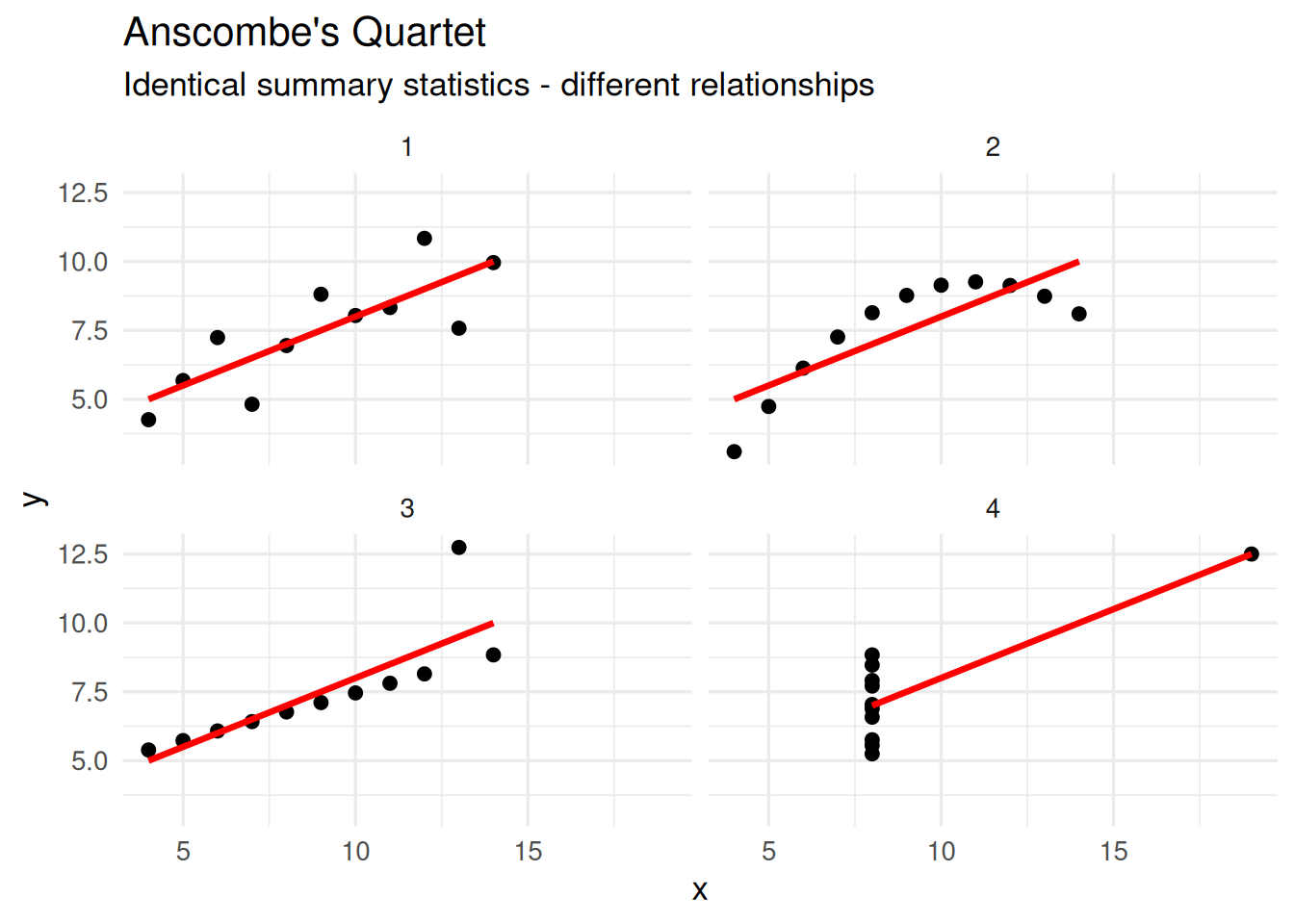
The infamous dataset: Anscombe’s Quartet.
- What do you imagine could explain the data behavior in each of the four datasets?
- Do you think the red line is a good approximation of the data in all four datasets?
In Chapter 13 you will learn more about how to model relationship 2 of Anscombe’s Quartet.
13.17 Summary
A well-designed chart can mean the difference between confusion and clarity — between a rejected proposal and an approved drug.
- Use the “Grammar of Graphics” approach together with the ggplot2 package within tidyverse to plot your data.
- Prioritize plotting raw data instead of summaries whenever possible.
-
ggplot2 has 4 levels of grammar:
aes()to say which data to plot and how,geom_to set the kind of plot to use,scale_to make the plot prettier, andtheme()to control the specifics of the plot. We covered theaes()andgeom_layers. - Only use barplots for discrete values. If applying them on continuous variables, it hides the distribution of the data.
- Use
geom_point()to create a scatterplot of two continuous variables. - Use
geom_smooth()to add a smoothing line to the scatterplot. - Use
geom_bar()to create a barplot of discrete variables.
Pharma: Accelerating drug approvals with clear trial data. Hospitals: Improving patient outcomes through better decision-making. Industry: Convincing stakeholders (from doctors to CEOs) with evidence.
Examples
- Present clinical trial results to regulators (e.g., FDA, EMA) or investors.
- Monitor hospital performance (e.g., infection rates, patient wait times).
- Compare drug efficacy across demographics in pharma R&D.
- Explain risks/benefits to non-experts (patients, policymakers, or even journalists).
📖 Reading task: Basic principles for creating graphs
(2) Making graphs in R is relatively easy compared to other programs and can be done with very little code. Because it takes a few lines of code to create multiple types of plots, it gives you some time to consider: why you are making them; whether the graph you’ve selected is the most appropriate for your data or results; and how you can design your graphs to be as accessible and understandable as possible.
To start, here are some tips for making a graph:
- Whenever possible or reasonable, show raw data values rather than summaries (e.g. means).
- Though commonly used in scientific papers, avoid barplots with means and error bars as they greatly misrepresent the data (we’ll cover why later).
- Use colour to highlight and enhance your message, and make the plot visually appealing.
- Use a colour-blind friendly palette to make the plot more accessible to others (more on this later too).
13.18 Plotting two continuous variables
There are many more types of “geoms” to use when plotting two variables. Your choice of which one to use depends on what you are trying to show or communicate, and the nature of the data. Usually, the variable that you “control or influence” (the independent variable) in an experimental setting goes on the x-axis, and the variable that “responds” (the dependent variable) goes on the y-axis.
For now, let’s focus on plotting continuous data, since our data has a lot of continuous data and often in research we work with more continuous than discrete variables. When you have two continuous variables, some geoms to use are:
-
geom_point(), which is used to create a standard scatterplot. Since it is so commonly used, we’ll use this one. -
geom_hex(), which is used to replacegeom_point()when your data are massive and creating points for each value takes too long to plot. -
geom_smooth(), which applies a “regression-type” line to the data.
Let’s check out how BMI may influence the area under the curve for blood glucose after the meal using a point plot. The area under the curve of glucose is a measure of how much glucose is present in the blood over a fixed period of time. A higher area under the curve for glucose usually suggests that the body has a harder time handling glucose. But, like everything in biology, it’s more complex than that. But we won’t cover that complexity in this workshop.
Like with the previous plot we created using BMI, we’ll put BMI on the x axis in the aes() function, since we are assuming that BMI “causes” or contributes to higher glucose in the blood after a meal. Then we put the area under the curve for glucose (auc_pg) on the y axis, since it will be “responding to” or “caused by” BMI.
docs/learning.qmd
#ggplot(post_meal_data, aes(x = BMI, y = auc_pg)) +
#  geom_point()
Run this code chunk with mac=Command-Entermac=Command-Enter. You’ll see a scatterplot of BMI and the area under the curve for glucose. Notice how there is a bit of an increase in glucose as BMI increases? Because ggplot2 works in layers, we can add another layer to the plot by adding a + after the geom_point() function. Let’s add a smoothing line to the plot to see if there is a general trend between BMI and glucose by using geom_smooth().
Run this code chunk with mac=Command-Entermac=Command-Enter and we’ll see a scatterplot of age and the max heart rate with a smoothing line on top of the points. The colors represent the sub-groups: exercises-induced angesio (yes/no).
This makes a nice smoothing line through the data and gives us an idea of general trends or relationships between the two variables.
13.19 Survey
Please complete the survey for this session: